Pro Tools maintenance, session inspection and audio-file tools
PT Prefs is a Mac toolkit for the routine and not-so-routine jobs around a Pro Tools system. The free maintenance tools cover preference repair, dated backups and restore, and a full plug-in inventory across AAX, AU, VST2 and VST3 formats with search and export.
PT Prefs Pro adds plug-in configuration management, detailed saved-session inspection and audio-file analysis. The remaining Pro tools cover individual AAX activation control and Plug-in Sets, WAV/AIFF integrity checking, PTX session inspection including Session Details, a read-only Edit View, I/O and routing analysis, batch loudness measurement, Adjust WAV, a Finder Quick Action, and command-line plus local HTTP JSON automation.
Get PT Prefs
Download PT Prefs for macOS
Requires macOS 11 Big Sur or later and Pro Tools 11 or newer
- Repair and Advanced Repair
- Unlimited preference backups with optional retention
- Restore and Advanced Restore
- Multi-format plug-in inventory, search and export
- Useful folder shortcuts
- Current macOS download
Buy PT Prefs Pro - $35 USD
Lifetime licence — no subscription
Licences are supplied manually, there may be a delay
- All free features, plus:
- Individual AAX activation/deactivation
- Plug-in Sets
- WAV/AIFF Integrity
- PTX inspection: Session Details, Edit View, I/O, Routing
- Loudness measurement
- Adjust WAV and Finder Quick Action
- CLI and local HTTP JSON automation
Free and Pro editions
PT Prefs is free for the everyday maintenance jobs that keep a Pro Tools system healthy. PT Prefs Pro adds the deeper inspection, management and audio-file tools used for support, handovers, archives and delivery preparation.
| Capability | Free | Pro |
|---|---|---|
| Repair and Advanced Repair | Included | Included |
| Unlimited preference backups (optional retention 1–10) | Included | Included |
| Restore and Advanced Restore | Included | Included |
| Multi-format plug-in inventory (AAX, AU, VST2, VST3), search and Excel/text export | Included | Included |
| Folder shortcuts and window position reset | Included | Included |
| Individual supported AAX activation/deactivation | Not included | Included |
| Plug-in Sets | Not included | Included |
| WAV/AIFF Integrity checking | Not included | Included |
| PTX inspection: Session Details, Edit View, I/O, Routing | Not included | Included |
| Loudness measurement | Not included | Included |
| Adjust WAV and Finder Loudness Quick Action | Not included | Included |
| CLI and local HTTP JSON automation | Not included | Included |
Compatibility and platform
PT Prefs runs on macOS 11 Big Sur or later and works with Pro Tools 11 and newer. It is a Mac application and is not available for Windows.
Saved-file analysis reads PTX, WAV and AIFF files directly. Pro Tools does not need to be installed or running merely to inspect a saved PTX — the structural, track and routing information is read from the file itself. Pro Tools is relevant to the maintenance tools that modify active preferences or move plug-ins, where PT Prefs checks the running state before changing anything.
A legacy download remains available for systems earlier than macOS 11 Big Sur.
Repair and Advanced Repair
Pro Tools stores preferences and support files that can become inconsistent and cause unpredictable behaviour. Standard Repair trashes the supported preferences and caches so Pro Tools rebuilds them on next launch. A backup-first option is available, and PT Prefs shows a Pro Tools running-state indicator and checks for changing operations before it proceeds.
Advanced Repair exposes the individual categories and lets you repair only selected items, which is useful when a symptom points at a particular audio-engine, Workspace, waveform, MIDI or plug-in-cache file rather than the whole set. Direct trashing of an individual row does not automatically back up; the selected-repair path includes a backup option.
Repair affects supported preferences and support files, not sessions or recorded media. It is a practical first step for many Pro Tools faults, but it does not guarantee curing every problem. A concise workflow: back up, reset the relevant category, relaunch Pro Tools and test before restoring broader state.
Standard Repair
- Trashes supported preferences and caches for a clean rebuild
- Backup-first option
- Pro Tools running-state indicator and change checks
- Optional inclusion of the legacy AAX cache
Advanced Repair categories
- Main preferences and macOS plist
- DSI / audio-engine preferences
- Workspace and general Pro Tools cache
- Current and legacy AAX caches (separate targets)
- Wave Cache and Waves cache
- Recent / Carbon I/O
- Audio MIDI / By Host MIDI and Core Audio Manager
- Miscellaneous and updater state
The legacy AAX option in Standard Repair clears an older cache location, while the current AAX cache is targeted separately in Advanced Repair — useful when only one of the two is implicated.
Backup and Restore
PT Prefs takes dated snapshots of supported preferences and support data, with a configurable destination. It can continue an existing PT Prefs 2 backup folder, so an established backup history is preserved when upgrading.
You can keep unlimited snapshots, or set retention between 1 and 10 completed snapshots. A new snapshot completes before any older ones beyond retention are moved to Trash, and incomplete backups are never offered for restore. Full Restore returns the supported contents of a snapshot; Advanced Restore lets you restore only selected categories — useful for recovering I/O Settings or presets without bringing back every previous preference.
Backups include the Pro Tools Documents support content: Clip Effects and Fade presets, Grooves, I/O Settings, Plug-In Maps and Settings, Pro Tools Presets, Session Templates and Track Presets. This is preference and support-data backup, not a backup of PTX sessions, audio or video files, or a whole workstation.
- Dated snapshots with configurable destination
- Continue an existing PT Prefs 2 backup folder
- Unlimited snapshots or retention of 1–10
- New snapshot completes before older ones are trashed
- Incomplete backups are not offered for restore
- Full Restore or Advanced Restore by category
- Pro Tools Documents content: presets, grooves, I/O, templates, maps
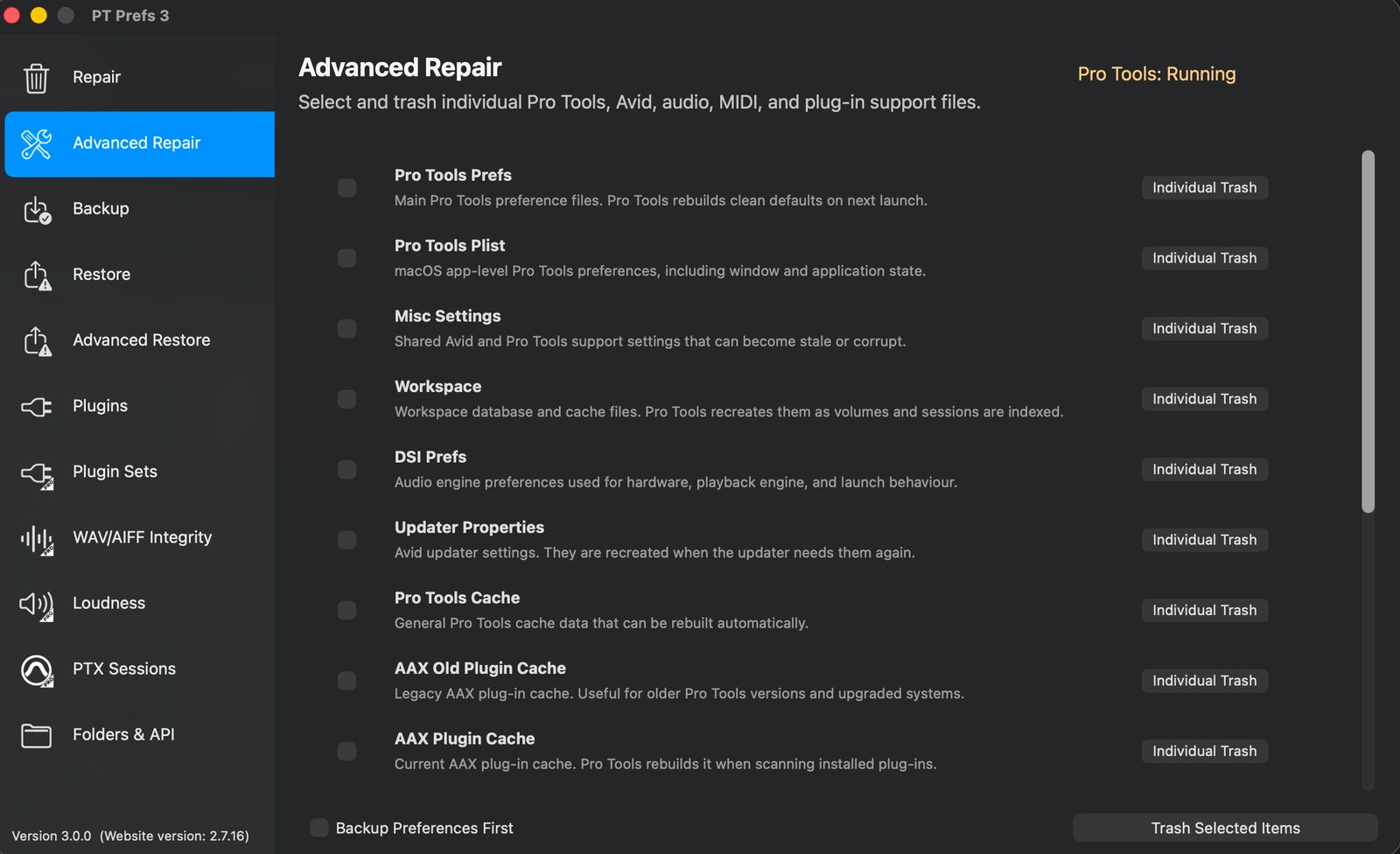
PT Prefs preference backup, restore and maintenance controls.
A practical maintenance sequence
A maintenance sequence: capture a dated working snapshot first, quit Pro Tools before any changing operation, reset only the relevant category, reopen Pro Tools and test, then restore selected presets or I/O only if the test shows you need them. A backup restores supported preferences and support data, not sessions, media, plug-ins or an entire Mac. A cache restored from before plug-in updates may not describe today's installation, so check what a snapshot predates before relying on it.
The CLI and local HTTP JSON interfaces remain maintenance-only, same-Mac and authenticated — they are not remote analysis tools. No maintenance step is a universal cure; test after each change before moving on.
AAX inventory and individual control
The plug-in inventory is free and covers AAX, AU, VST2 and VST3 formats. It lists active and unused AAX plug-ins alongside recognised Waves locations, plus the standard system and user AU Components, VST and VST3 locations. For each plug-in it shows name, type, active/unused status, category, version, architecture, manufacturer, modification date and size where available. Rich AAX metadata can depend on the Pro Tools AAX cache being present.
You can search across metadata, sort columns, hide unused plug-ins, re-scan, show a plug-in in Finder, open the manufacturer's website when available, and export Excel or text reports. It is useful for support, update preparation and comparing systems. A product installed in several formats appears as separate bundle rows distinguished by the Type column, not as duplicate purchases or instances.
Pro adds individual AAX activation control and Plug-in Sets: supported AAX bundles can be moved between the active Plug-Ins and Plug-Ins (Unused) folders without uninstalling the product. Quit Pro Tools before making changes. Protected Core/System and specially managed Waves components are excluded from ordinary moves, so not every plug-in can be moved. AU and VST inventory does not imply activation or set management for those formats.
Inventory (Free)
- AAX, AU, VST2 and VST3 plus recognised Waves locations
- Name, type, status, category, version, architecture, maker, date, size
- Search, column sort, Hide Unused, Re-Scan
- Show in Finder and manufacturer website when available
- Excel and text reports
Individual control (Pro)
- Activate or deactivate supported bundles
- Moves between Plug-Ins and Plug-Ins (Unused)
- No uninstall — the product stays installed
- Quit Pro Tools before changes
- Protected Core/System and Waves components excluded
Scan scopes
Three scan scopes control which formats are inventoried: AAX only; All plug-in formats (AAX, AU, VST2 and VST3); and All except AAX. Opening the Plugins view does not start a scan. Choose the scope and click Scan Plugins or Re-Scan Plugins. Changing the format selector is not itself a new scan — a previously displayed inventory remains the previous result until a fresh scan completes. The selected scope is remembered between visits.
Scanning covers the standard system and user Components, VST and VST3 locations plus the supported active and unused AAX and Waves locations, not every mounted disk. A product installed in several formats appears as separate bundle rows, not duplicate purchases or instances; the Type column distinguishes them.
Narrow and export an inventory
Category, Manufacturer and Plugin Set combine with text search and Hide Unused. A row must meet every active restriction to remain visible. Multiple selected categories are alternatives within the category filter. Each space-separated search term must match some searchable detail — potentially in different fields: name, type, status, version, architecture, manufacturer, category or path. A set filter describes AAX membership and can legitimately show no rows after a non-AAX scan.
Clear Filters removes the display restrictions without changing the scan scope or scanning again. Save Filtered Only exports the visible filtered and sorted rows; with it off, export reflects the last completed inventory scope. An all-format selector does not make an earlier AAX-only result complete — re-scan to refresh the scope.
Practical example: scan all formats, clear the set filter, search a product name, then compare its AU, AAX and VST versions and locations side by side. Listing a bundle does not validate its licence or host compatibility; architecture is detected executable slices, not certification, and the modification date is a filesystem date, not a vendor release date.
Plug-in Sets
Plug-in Sets are repeatable named collections with comments and editable membership. New Set captures the currently active movable plug-ins; New Empty Set starts without optional plug-ins; the built-in [All Plugins] set returns movable bundles to active. Editing a definition and activating it are separate steps — activation changes which bundles sit in the active and unused folders.
Sets are useful for minimal troubleshooting configurations, dialogue editing, music mixing or particular studio setups. Newly installed products do not silently join old sets; you add them to the membership explicitly. Deleting a definition does not uninstall any product. Protected and Waves components sit outside normal set control.
A practical minimal-troubleshooting workflow: create a New Empty Set, activate it to remove optional movable AAX bundles from the active folder, relaunch Pro Tools and test, then return to your working set. Protected and specially managed components retain their own state.
- Named, repeatable collections with comments
- New Set, New Empty Set and built-in [All Plugins]
- Editing a definition is separate from activating it
- Activation moves bundles between active and unused
- New installs do not silently join old sets
- Deleting a definition does not uninstall products
Manufacturer-based sets
A manufacturer set gathers the selected manufacturer's installed movable AAX bundles for review. It is a quick way to see everything one vendor has installed across the active and unused folders before deciding what to keep active. As with any set, it contains AAX bundle membership, not binaries, licences, presets or processing settings, and activating it only moves supported movable bundles.
Create a set from a saved session
PTX Sessions → Create Plugin Set… (Pro) builds a set from the selected saved PTX, not from unsaved Pro Tools inserts. Save the intended session in Pro Tools first, load or select its PTX, wait for scanning to finish, then choose Create Plugin Set… and review the matches before inspecting the resulting set. The filename supplies a distinct set name; a name collision adds a numerical suffix. Installed unused AAX bundles can match.
Match evidence uses identifiers and cached or full product names. Ambiguous strongest matches stay unresolved rather than arbitrarily choosing a bundle. Shared-shell products use the matching physical shell bundle, so activating the set may expose other products in that shell. Missing AU or VST versions cannot stand in for missing AAX.
Unresolved session plug-ins appear separately as red warning rows without editable activation boxes, with the set name and comment shown red while unresolved. If some plug-ins match, an incomplete set can be deliberately created; if none match, no set is created. Creation does not activate, move plug-ins, transfer licences, copy settings or edit the PTX. Resolve missing or ambiguous installations and refresh metadata before recreating or reviewing the set; do not treat this as a compatibility certification. Activating an incomplete set may deactivate optional bundles not included in it.
New Current snapshots the active movable folders; New Empty starts without optional movable plug-ins; protected Core/System and managed Waves components retain their established handling.
WAV/AIFF Integrity
WAV/AIFF Integrity performs structural and metadata checking across WAV, RF64, BW64 and AIFF/AIF/AIFF-C/AIFC containers. You can select files, drag and drop, or run recursive folder scans. It inspects format and data-size consistency, chunks, and broadcast BEXT and AXML/CHNA/ADM information where present.
Main fields include file, size and date, detected container, ADM flag, channels, and warning and error counts. Expanded details add sample rate, bit depth, duration and diagnostics. You can sort, filter to Show All, Warnings or Errors, and export complete or problems-only Excel/text reports with paths and technical metadata.
Warnings identify unusual or inconsistent data that needs review. Errors identify structural or parsing problems that may make a file unreadable, incomplete or unreliable. The scan leaves the source unchanged; use listening and the delivery specification to assess the content.
Select Show All for a complete integrity report, or Warnings or Errors to focus on problems; problems-only Excel and text exports carry just the items needing attention. Integrity verifies supported container structure and metadata; loudness measures the decoded audio. Neither alone confirms correct programme, intelligibility, artistic content or sync — use listening and the delivery specification to judge the content itself.
Containers and selection
- WAV, RF64, BW64
- AIFF, AIF, AIFF-C, AIFC
- File selection, drag/drop, recursive folder scans
- Format and data-size consistency, chunks
- BEXT, AXML, CHNA and ADM where present
Reporting
- File, size/date, container, ADM, channels, warning/error counts
- Expanded: sample rate, bit depth, duration, diagnostics
- Sort, Show All / Warnings / Errors
- Complete or problems-only Excel/text export
- Paths and technical metadata included
PTX inventory and media
PTX inventory inspects saved PTX files without opening them in Pro Tools. You can inspect a single file or run recursive folder scans, with an option to include session backups. For each file it reports session version, date and size, sample and frame rates, audio and track counts, notes, media state, and the tracks and plug-ins stored in the file.
Media covers audio and video. PT Prefs checks recorded paths and the conventional session Audio Files and Video Files folders, including parent-session context for backup PTX files. The session summary reports Checking, Complete, Missing, Error or No Media. Individual references show their link status, with recorded and resolved paths and diagnostics in tooltips. Complete means the references resolve on the current Mac, not that the archive is self-contained; Missing often means a drive is unmounted or media has been moved. PT Prefs does not relink or rewrite PTX files. A selected saved session can be refreshed after a save.
Excel and text exports can include optional Media Filepaths and Tracks/Plug-ins. Media Filepaths covers supported audio and video references together, not an audio-only filepath option. Tracks/Plug-ins is independent. Main reports also include supported markers and track markers where decoded — marker track, number, name, timecode or position and comment — alongside clips, groups, playlists and notes.
For an incoming session, the inventory shows its scale, sample and frame rates, track and plug-in counts and whether its media is online before you commit time to opening it. For an archive, a recursive scan catalogues every stored PTX with media state, so you can see which sessions still resolve and which need relinking — without opening each one.
- Single file or recursive folder scans
- Optional Include Session Backups
- Version, date/size, sample/frame rates, audio/track counts
- Notes, media state, tracks and plug-ins
- Audio and video media checks
- States: Checking, Complete, Missing, Error, No Media
- Per-item tooltips with recorded/resolved paths
- Excel/text export with optional Media Filepaths and Tracks/Plug-ins
Incoming session and handover workflow
A practical handover: confirm you have the intended PTX, mount the media it references, and let the media checks settle before reading the summary. Then inspect Track Details, Edit View, I/O and Routing for the structure you need. Investigate any Missing references using the recorded and resolved paths in the tooltips — Missing usually means a drive is unmounted or media has moved, not that the archive is broken. Export the detail you need once the picture is clear.
"Complete" means the recorded paths resolve on this Mac, not that the archive is portable or self-contained. PT Prefs does not relink or edit PTX files, and inspection does not modify the source files. All reported values are saved or decoded data, not live values; Pro Tools must save for recent edits to appear, so refresh the selected file after a save before comparing results.
Session Details and Edit View
Session Details opens a dedicated header for an individual PTX: notes, start, sample rate, bit depth, frame rate and pan depth where decoded. Below it, a track-centred list shows name, type and width, input and output, inserts 1–10, sends A–J and status. Expanded supported details add mix point, playlists, folders, automation, comments, VCA and plug-in automation parameter information. Text summaries also include supported markers, tempo and meter, track states, and volume, pan and send detail where decoded. You can copy a summary or export a text summary. All of this is saved or decoded data, not live values; Pro Tools must save for recent edits to appear.
The Edit View tab is a newer capability: a read-only visual overview of the decoded track and timeline layout. It shows colour-coded clips and clip groups, fades and the time ruler, with separate Audio Clips, Video Clips and Clip Groups lists. Selection links between the timeline and the clip list, and clip start and duration tooltips appear as you scroll and zoom or fit.
Edit View is a read-only overview. It displays decoded clip placement and marks unsupported tick-based or video placement as unavailable. Use Fit to see the whole timeline, scroll and zoom to move around, and click a clip to inspect its selection and details. While the inspector has focus, Tab and Shift-Tab move between clips. It does not play audio or draw waveforms. Save in Pro Tools and let the selected file refresh before comparing results; a lack of decoded placement does not establish missing media or a deleted session event. Use Pro Tools to edit or play the session.
- Read-only PTX track and timeline overview
- Colour-coded clips and clip groups, fades, time ruler
- Separate Audio Clips, Video Clips and Clip Groups lists
- Selection linking between timeline and clip list
- Clip start and duration tooltips
- Scrolling and zoom/fit
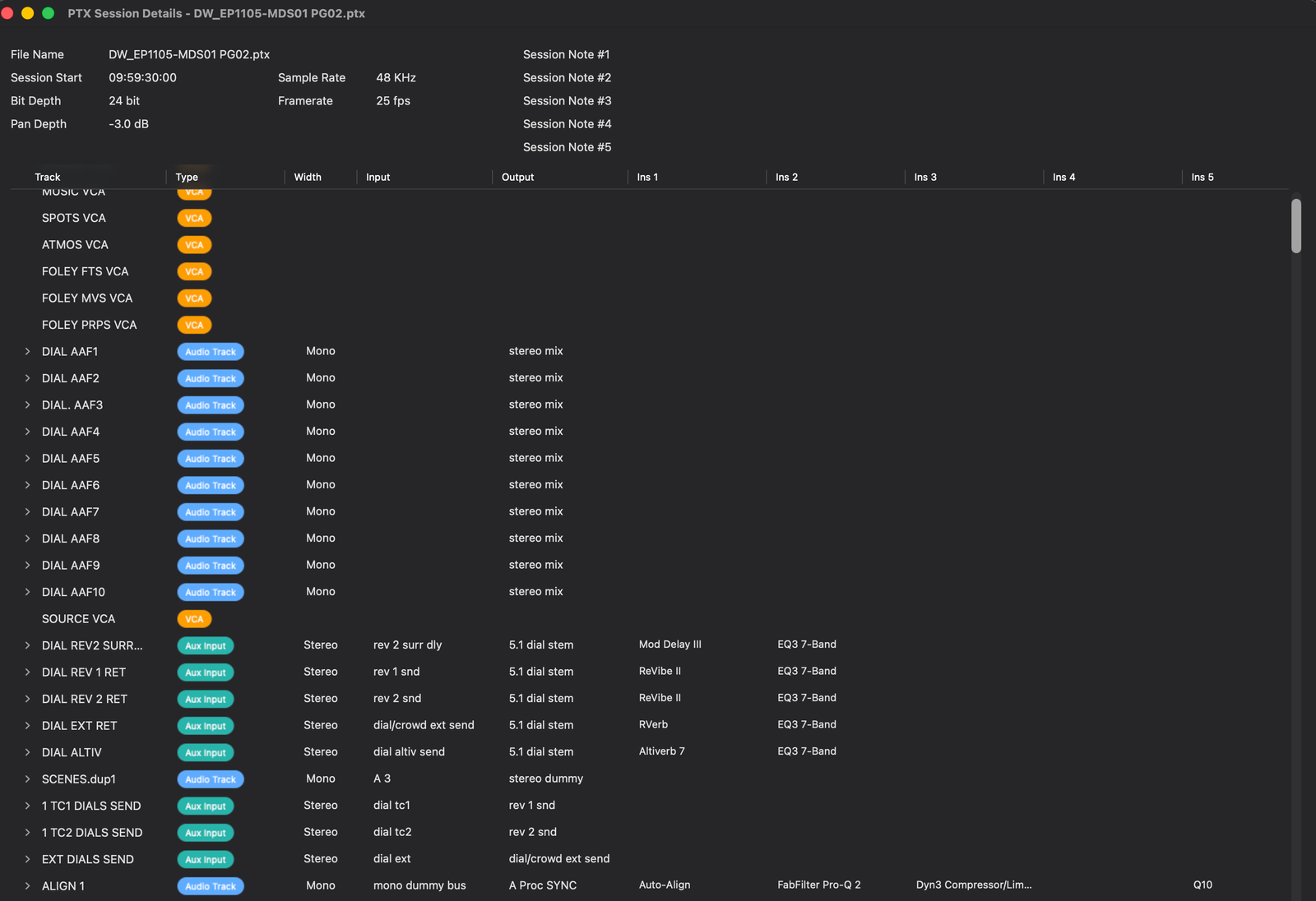
PTX Session Details showing track, plugin, media and mix information.
Session Details header and track list
- Header: notes, start, sample rate, bit depth, frame rate, pan depth
- Track name, type, width, input, output
- Inserts 1–10 and sends A–J
- Status, mix point, playlists, folders
- Automation, comments, VCA, plug-in automation parameters
- Copy Summary and text Export Summary
I/O details and routing
The I/O view groups hardware inputs and outputs, buses and sub-buses, and bus-to-hardware-output assignments. Columns show name, type, width and assignment/table, with Copy and Export Summary. These are the session's stored definitions, useful when moving between rooms — not live hardware validation.
The routing grid lays out sources as rows and destinations as columns, covering outputs and sends with send letters A–J. Source filters let you focus on Track, Aux, Bus or Input; destination filters cover Track In, Aux In, Bus and Out. The grid scrolls and highlights crosspoints on click.
Circular routes flag all involved crosspoints red with a !, so a loop such as !A identifies Send A as part of the loop, following normal outputs and sends through bus-to-track and Aux connections. This is a potential feedback warning based on saved routing, not proof of audible feedback. A typical path to check: a track routes to a bus, the bus feeds an Aux, and the Aux feeds a print track.
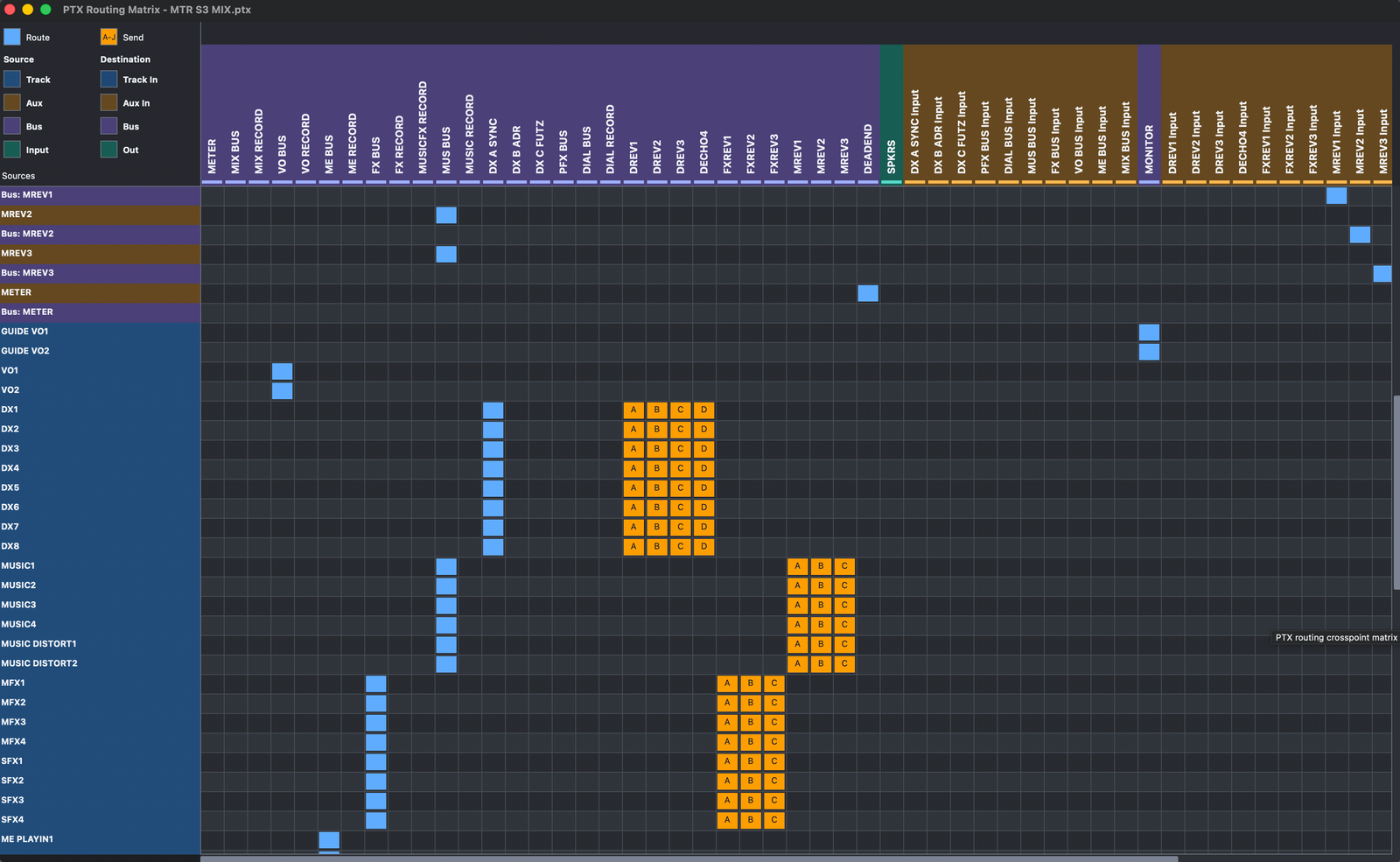
The PTX Routing Matrix showing source-to-destination routing across a session.
- Hardware inputs/outputs, buses/sub-buses, bus-to-output assignments
- Name, type, width, assignment/table columns
- Copy and Export Summary
- Routing grid: rows = sources, columns = destinations
- Outputs and sends, send letters A–J
- Source filters Track/Aux/Bus/Input; destination Track In/Aux In/Bus/Out
- Circular routes flagged red with ! on every involved crosspoint
- Potential feedback warning from saved routing
Loudness measurement
Loudness measurement takes batch WAV input via drag/drop or folder selection. Folder selection collects the directly contained WAVs rather than scanning recursively. For each file it reports integrated LUFS, true peak dBTP, loudness range LRA, format and duration, plus bed measurements and scope where supported.
Without a target, measurement yields the figures and an OK status. With a target, it reports Pass or explains loudness or peak failures. The app remembers your preset. Built-in reference presets cover Spotify, Apple Music, YouTube, Tidal, Amazon Music, EBU R128 and ATSC A/85. Choose the preset appropriate to the job and check it against the delivery specification supplied by your client or distributor.
Results export to Excel, text and Save Graphic PDF… visual reports with measurement, scope and bed information. Loudness WAV folder selection collects the directly contained WAVs rather than scanning recursively; integrity and PTX scans can recurse. The built-in destination presets are reference targets to check against the actual client or distributor specification — do not treat the preset names as invented platform target values.
Measurements
- Integrated LUFS
- True peak dBTP
- Loudness range LRA
- Format and duration
- Bed measurements and scope where supported
- No target: measurements and OK; target: Pass or failure explanation
Built-in presets
- Spotify
- Apple Music
- YouTube
- Tidal
- Amazon Music
- EBU R128
- ATSC A/85
- App remembers your chosen preset
Adjust WAV and Finder Quick Action
After a target scan, Adjust WAV creates adjusted copies. Originals are left unchanged. Output goes to a folder beside the source named _PT Prefs - Preset Name: adjusted files are written as _normalised.wav, and already-passing files are copied as _unmodified.wav.
Gain is limited to ±24 dB, with a limiter path used when needed to hold a true-peak ceiling. Outputs are measured again before the completed output is made available, and the completion report distinguishes adjusted, copied, skipped and failed items. Measuring tells you the loudness; Adjust WAV changes the audio to meet a target — listen to the adjusted deliveries to confirm they still sound right.
A Finder Quick Action and Services item named PT Prefs Loudness opens the app and starts measurement of the selected WAV files or folder using your saved preset, once the app has been launched once. It requires Pro and does not need the HTTP server. Folder selection follows the same non-recursive behaviour as the main tool.
- Adjusted copies only — originals unchanged
- Output folder beside source: _PT Prefs - Preset Name
- Adjusted _normalised.wav, passing files _unmodified.wav
- Gain limited to ±24 dB, limiter path for true-peak ceiling
- Outputs re-measured before completion
- Completion: adjusted, copied, skipped, failed
- Finder Quick Action 'PT Prefs Loudness' after first launch
- Pro required; no HTTP server needed
A checking and delivery example
A typical pass: scan the delivery folder with WAV/AIFF Integrity and review any warnings or errors first. Then measure loudness against the correct target preset, reading the integrated LUFS, true peak and loudness range. If a file fails, select it and run Adjust WAV, which writes separate adjusted copies, caps gain at ±24 dB, uses limiting when needed for the true-peak ceiling, and re-measures the output before completing. Inspect the adjusted, copied, skipped and failed counts, then audition the adjusted deliveries to confirm they still sound right. Originals are preserved throughout; Adjust WAV works with WAV input and does not support AIFF adjustment.
Folders and automation
Free shortcuts open the active and unused AAX folders, the Pro Tools and PT Prefs logs, and the backup location, and reset the window position.
Pro automation covers repeatable workstation maintenance. A one-shot command-line JSON command returns a result and quits; a local HTTP JSON service keeps working while the GUI stays open, authenticated and same-Mac only. Supported operations include discovering commands and status, backup, trashing selected preferences, restoring all or selected items, listing backups, inventorying plug-ins, and listing or activating sets. The automation does not run PTX, integrity or loudness analysis. Changing operations require explicit confirmation and the relevant Pro Tools running checks. This is local maintenance automation, not remote network administration.
Free shortcuts
- Active and unused AAX folders
- Pro Tools and PT Prefs logs
- Backup location
- Window position reset
Pro automation operations
- Discover commands and status
- Backup
- Trash selected preferences
- Restore all or selected items
- List backups
- Inventory plug-ins
- List and activate sets
CLI one-shot JSON returns a result and quits; local HTTP JSON stays live with the GUI open. Authenticated, same-Mac only. Changing operations require confirmation and Pro Tools running checks.
Choose the tool for the job
Start with the task you need to complete.
| If you want to… | Use | Edition |
|---|---|---|
| Reset preferences after odd Pro Tools behaviour | Repair / Advanced Repair | Free |
| Keep a dated, restorable preference snapshot | Backup / Restore | Free |
| List, search and export installed plug-ins (AAX, AU, VST2, VST3) | Plug-in Inventory | Free |
| Turn individual plug-ins on or off without uninstalling | AAX Individual Control | Pro |
| Save and switch repeatable plug-in configurations | Plug-in Sets | Pro |
| Check WAV/AIFF structure and metadata in bulk | WAV/AIFF Integrity | Pro |
| See what is inside a PTX without opening Pro Tools | PTX Inventory / Session Details | Pro |
| Visually inspect a session's decoded timeline layout | Edit View | Pro |
| Review track I/O and routing, spot feedback loops | I/O and Routing | Pro |
| Measure loudness against a reference preset | Loudness | Pro |
| Create target-adjusted WAV copies, originals safe | Adjust WAV | Pro |
| Measure from Finder with a saved preset | Finder Quick Action | Pro |
| Automate repeatable maintenance locally | CLI / HTTP JSON | Pro |
Example exports
These example Excel files show the information produced by the WAV and PTX cataloguing tools.
Questions about PT Prefs
Version for older macOS systems
PT Prefs 2.7.16 is available for systems earlier than macOS 11 Big Sur.