Guide
How to reconform a Pro Tools session when the picture changes
Say a scene moves earlier in the cut and there’s a new shot in the middle of it. The dialogue edit, the Foley and that carefully timed door slam all need to land in the right place again. Here’s how I’d tackle it in PT EDL.
Reconforming means putting the sound you’ve already edited back in sync with the new picture.
Work on a saved copy
Save the Pro Tools session and make a working copy. Do the conform in the copy. If you need to go back, you’ve still got the edit as it was against the old picture. Project Undo in PT EDL can’t undo an edit you’ve already sent to Pro Tools.
Line up the old cut with your sound edit
The old cut has to match the sound edit you’re conforming. If your sound was cut against picture version 7, load version 7 as the old cut, not the one you’re conforming to. Load the revised cut as the new cut. PT EDL compares the two and works out what’s moved, what’s grown and what’s brand new.
Compare the old and new cuts
You can compare the old and new cuts in several ways — see Compare a revised cut for the full set, including saved Pro Tools PTX files. If you’re comparing PTX files, save both sessions first. PT EDL reads the files on disk. If editorial hasn’t sent a list, the old and new pictures or timed guide tracks will do. Load multiple reels and merge them if the cut spans more than one.
Check frame rate, offsets and a sync point
Before you calculate, check the frame rate of both cuts and set the old and new offsets so each list sits where it belongs on the session timeline. Find a known sync point — a clap, a slate, a cut you trust — and confirm it lines up. An offset moves the list; it doesn’t change the playback rate.
Calculate the conform plan
Choose Calculate Conform Plan and let PT EDL work through the two cuts. When it’s done you’ll have a plan showing what stays put (KEEP), what moves (COPY), what needs extra source at the head or tail (EXTEND) and where there’s no matching old material (INSERT).
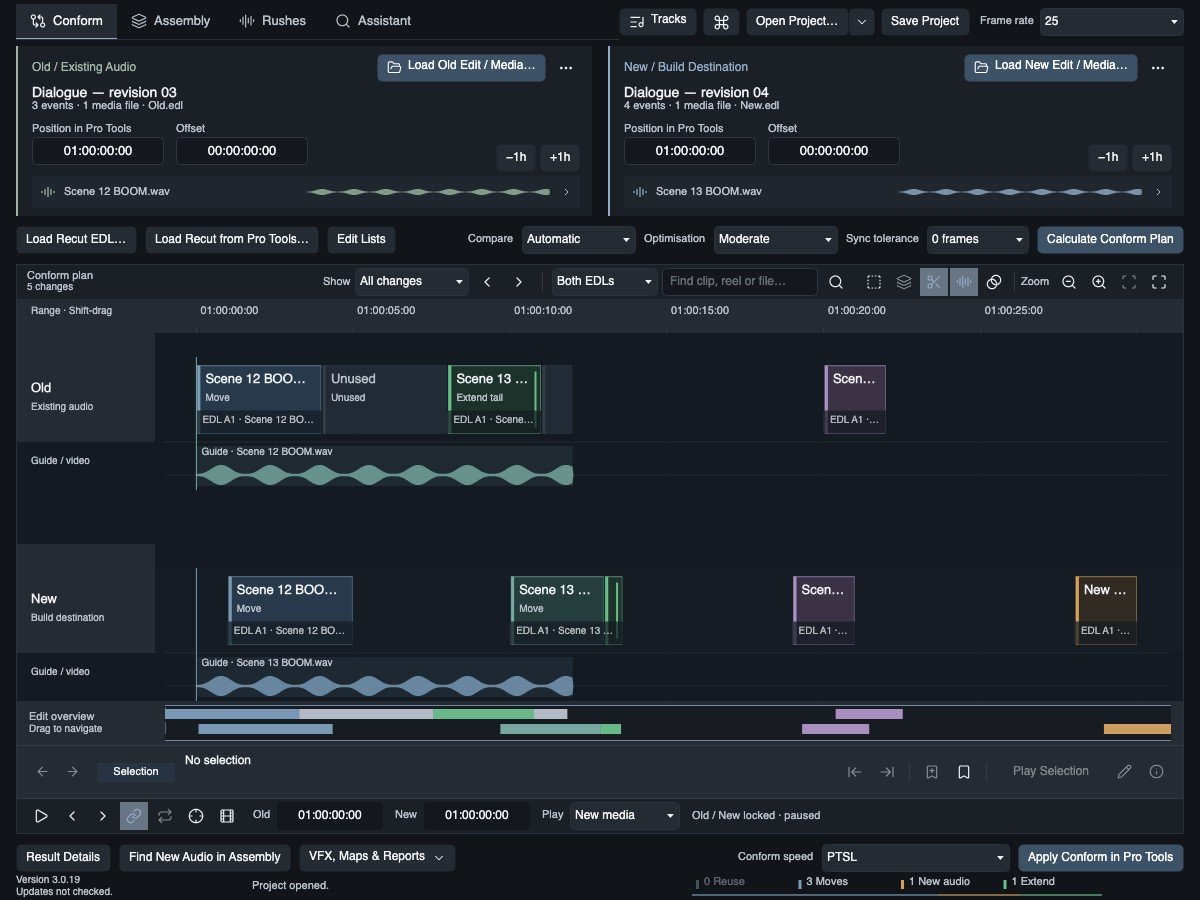
The plan shows which sections of the old cut can be reused and where they fall in the new cut.
Read the plan: moved, extended and new
In the example, the scene that moved earlier is a COPY — the sound travels with it to the new position. The shots that grew at the edges are EXTEND — they need extra audio, so PT EDL marks where more source is needed from the old cut. The new shot in the middle is INSERT — no old source was matched, so it’s the editor who decides what belongs there. That’s where Assembly comes in later. Filter the Changes list to Moves, Extensions, New audio or Reuse to check each kind in turn.
Choose tracks, automation and markers
Select the tracks you want to conform, including the automation and marker rulers you need. PT EDL copies the reviewed edit, KEEP regions included, so be deliberate about what’s in scope. If you only want dialogue and Foley to move and the music to stay put, leave the music tracks out.
Apply to an empty destination
Conform needs an empty, non-overlapping stretch of the session to copy into. Check the tracks, automation and marker rulers you’ve selected, and if the source and destination overlap, PT EDL stops — there’s no “proceed anyway”. If the new cut needs to start at its delivery timecode, follow Keep New Timecode… in PT EDL. After moving the old material in your working copy, set Old Offset to match and check the plan again. See Deliver for the full delivery notes.
Check the joins
After the conform, check sync either side of each join and listen through it. A fade, music edit or automation move that worked on the old cut may need another pass.
Use Assembly for new material
For the INSERT ranges — the new shot, anything without matching old sound — use Assembly to find the original production WAVs. Inspect the candidates, audition them against the guide, and assign a source only when you’re sure. Shared timecode is a clue, not proof.
Back to the PT EDL page.